Build Custom AI Worker
build
This builder's guide provides detailed instructions for building AI Worker with any custom or proprietary AI agent. There are generally two different options for building a custom AI worker:

Option 1 »

This is the simplest and the most effective option that you can use. Use this option if your agent:
  • Runs in Docker
  • Has an OpenAI-compatible POST /v1/chat/completions endpoint
  • Authenticates with a bearer token
  • Configurable via environment variables
  • Can send user-facing responses through Humatron MCP

Option2 »

Use this if your agent does not fit the Option 1 contract. For example, if your agent:
  • Runs in a different runtime (other than Docker)
  • Has a different API (incompatible with OpenAI)
  • Uses its own frontend (cannot use Humatron MCP)
  • Has its own internal architecture
  • Authenticates with a different mechanism (vis-a-vis bearer token)
  • Uses its own way of running and hosting
In that case you need a separate adapter service between Humatron and your agent.

One Build - Many Hires »

A Humatron build acts as a shared template for AI workers of a certain type. It defines the Custom agent configuration, custom tools, and MCP servers that are inherited by all hires of that build. When a hire is created, the build is instantiated into a unique hire instance, which is then customized further based on the employer's context and the specific job requirements.
Common build settings that are shared across all hires of the same build include:
  • Custom agent configuration
  • Role and role's instructions
  • Deployment configuration
  • Custom tools and MCP servers
Each build can be used to create multiple AI workers. When you create a build, it automatically generates a resumé - the public-facing representation of that build. Note that access to the build and its resumé is governed by the build's publishing status.
Depending on publishing status, the build will be visible either to you only, to your company or to the general public. Among other parameters, the resumé displays essential information from the build such as professional summary, role description, and the list of skills.
During hiring, users select the build (via its resumé) and fill out the hiring form to create a new AI worker from that build. When fully deployed and instantiated, this newly created AI worker becomes an independent instance of that build that is customized with:
  • Personalized name and avatar
  • Social preferences
  • Communication style
  • Job-specific instructions and requirements
  • Docker environment variables
  • Shell scripts to run before and after the deployment
  • Knowledge base data sources
Combination of separate builds and hires defines Humatron's «One Build - Many Hires» architecture, where every AI worker functionally consists of two layers:
  • Build - common configuration and shared agentic capabilities
  • Hire - employer-specific, individual and job-related customizations
This two-stage approach allows you to concentrate most of the capabilities in a shared build ensuring functional consistency across workers - while at the same time allowing for individual customization to meet specific employer's needs.

Step 1: Create new build »

Start a new build. Every new build at Humatron starts with the following properties:
Role
A role typically defines a job title, position or level of responsibility within a company or organization. It typically reflects the nature of the job, the industry, and sometimes the hierarchy within the workplace. Examples of roles:
  • Legal Assistant
  • Accountant
  • Document Translator
  • Python Coder
Avatar
Ensure that the build avatar matches the build's job role. Note that selecting a human image or a photograph for your AI worker build does not conceal their AI nature. Note also that if the social customization is allowed the avatar can be changed during the hiring process along with name, gender and communication style.
NOTE:
Avatar image must be a square of at least 96px size or larger. 512px size or larger if using Slack. 2 MB maximum file size.
Role Instructions
Role instructions acts as an LLM system prompt and provide an initial detailed operating handbook, e.g. employee handbook, for the main functional responsibilities of this AI worker. Each functional job area should be described in sufficient detail - in the same way as it would be described to a junior level human employee. These instructions will be integrated into the overall context for Custom agent and should be modelled similar to a well organized reasoning prompt.
Note that an AI worker will learn new skills and adapt existing skills and internal instructions over time. All AI workers come with a set of built-in core skills and capabilities that are specific to the Custom agent. You do not need to instruct about any of these. Do not include function or MCP server definitions here.
You can also attach any files that would help to augment or define additional general context about role instructions. These may include operating guidelines, technical specifications, etc.

Step 2: Configure Custom Integration »

TODO

Step 3: Configure Function & MCP Servers »

TODO

Step 4: Additional Configuration »

Each build includes a set of additional configuration options and settings. These are optional, as they are either read-only or preconfigured with sensible defaults.
  1. Restrict Social
    You can protect your distinct brand identity (personal or corporate) by restricting modifications to social attributes such as name, gender, avatar, and communication style during the hiring process. When such modifications are disabled, all AI workers built from your build will use name, gender, avatar and communication style of this build maintaining consistent social attributes of your brand.
    Important considerations:
    • This feature prevents multiple hires of the same build by a single employer, as it would create duplicate identities.
    • If you choose to restrict social attribute modifications, you must provide default values for these properties in your build configuration.
  2. Initial Shell Scripts
    Each hired AI worker is deployed either on-prem or on cloud (AWS, Azure, or OpenStack) on its own VPS instance. You can attach shell scripts to run before and after the build's MCPs are installed, enabling fine-tuned configuration of the hire instance runtime environment during startup and restarts. For example, you might use these init scripts to install additional libraries or Docker containers at startup to support custom telemetry, logging, or other extensions for your build.
  3. Deployment
    Humatron supports both on-prem and cloud-based deployments with full isolation of the infrastructure and data. On-prem deployment allows for full control of the infrastructure and data, while cloud-based deployment allows for easy scalability and deployment and management. Each AI worker is deployed either on-prem or on cloud (AWS, Azure, or OpenStack) on its own VPS instance. If you are deploying using cloud-based VPS, choose an instance that matches your CPU and RAM needs; all workers run on Ubuntu 24.04 LTS by default. Keep in mind that added MCP servers are the primary factor influencing how much CPU and memory capacity your VPS instance should provide.
  4. Support Email
    A support email is required and will be publicly displayed on the resumé as the primary support contact. Additionally, you may provide an optional link to external documentation or a detailed description of the AI worker's capabilities, skills, and functionality. This link will also be shown on the resumé.
  5. Build Token
    Each build is issued a unique build token, generated once at creation. Together with the corresponding organization and hire tokens, it can be used for MCP or tool authorization and authentication.

Step 5: Submit & Hire 🚀 »

Once build form is completed - submit it. Note that you can update and reconfigure the build any time later. After submission, you can hire the AI worker right away using the new Custom-based build.
When build is submitted for the first time - the resumé for this build is automatically generated.
  • Resumé is generated based on the build instructions and is visible to the public.
  • You can update resumé overview and skills list at any time.
Changes to the build may require a restart of the AI worker to take effect:
  • Some changes, like overview and skills list, do not require a restart of the AI worker to take effect.
  • However, it is recommended to assume that other changes to the build will be applied to the new AI workers only.
  • When build is public (published on the marketplace) - there is no way to force a restart of the existing AI workers of this build.
  • Any changes to the public build configuration will apply to new AI workers only.
Build can only be deleted after all AI workers of this build are terminated, if any. You can change publishing status of the build to builder to prevent new AI workers from being created.
Note:
  • Even if the build has no AI workers created off it yet - it will still incur some (minimal) credit consumption.

Build Lifecycle »

Build goes through the following lifecycle stages:
  • Live
    When build is first submitted - it is automatically in live status. This is the normal status for the build when all permitted operations on the build are available.
  • Paused
    The owner of the build can pause the build at any time. When build is paused - it is not available for hiring. Note, however, that the build is still subject to normal credit consumption. When build is paused - the existing AI workers of this build are NOT paused. The build owner can resume the build for hiring at any time. When build is resumed - it goes back to live status.
  • Suspended
    Unlike pausing the build which can only be done by the build owner - the suspension of the build can only be performed by Humatron team. It happens when Humatron team determines that the build is in violation of the platform policies. When build is suspended - it is not available for hiring and will be further reviewed by Humatron team. Only Humatron team can reinstate the build to live status. If your build is suspended - contact Humatron support team at support@humatron.ai for more details.
  • Removed
    Build can be removed only by the build owner. When removed it is no longer available for hiring or further modification. Removed build cannot be reinstated. Removed builds are available on the dashboard for informational purpose only. Only when the build is removed - all billing and credit consumption associated with this build are stopped.

Build Publishing »

When build is first created - it is in builder publishing mode. This is the mode where only the builder (the user that created the build) can hire the build. Build can be published between different modes where each mode has different visibility and cost profile:
Build ModeWho Can HireUse CaseCost MarginsCommission on Hire
BuilderBuilder onlyDevelopment, testing, prototypingLowNone
PrivateBuilder's companyInternal AI workers for company useHighNone
PublicAnyoneMarketplace - builder sets the price per hireMedium20% per hire (80% paid to builder)

Build Pricing »

Build pricing is generally designed to be directly aligned with actual system usage.
Under the hood, the platform orchestrates multiple third-party and internal services - LLM providers, compute/hosting, storage, agents, messaging, and more. Each operation incurs a real cost. Humatron applies a small, consistent margin on top of these underlying costs and deducts the total from your credit balance.
Some charges are applied per operation (e.g., model inference), while others are amortized over time (e.g., infrastructure and shared platform services). You can monitor overall and individual credit consumption for each hire and build.
Credit consumption depends on the core agent. For example, with Blackbox agent, Humatron manages and bills for model inference via its own LLM integrations. With agents like OpenClaw, the builder provides and pays for the model directly, so inference costs are not charged to Humatron credits in this case.
Pricing further depends on the publishing mode of the build. In builder publishing mode, margins are minimized to reduce iteration cost during development. In private mode (company use), margins are higher to reflect production-grade reliability and support, while remaining commission-free. In public mode (marketplace), medium margins apply - covering production-grade reliability and scalability, yet accounting for the 20% per-hire Humatron commission.
Observability, Governance, Guardrails »

Humatron provides a comprehensive set of internal and external observability, governance, and guardrails tools to help you manage your builds and AI workers.
Audit
Audit
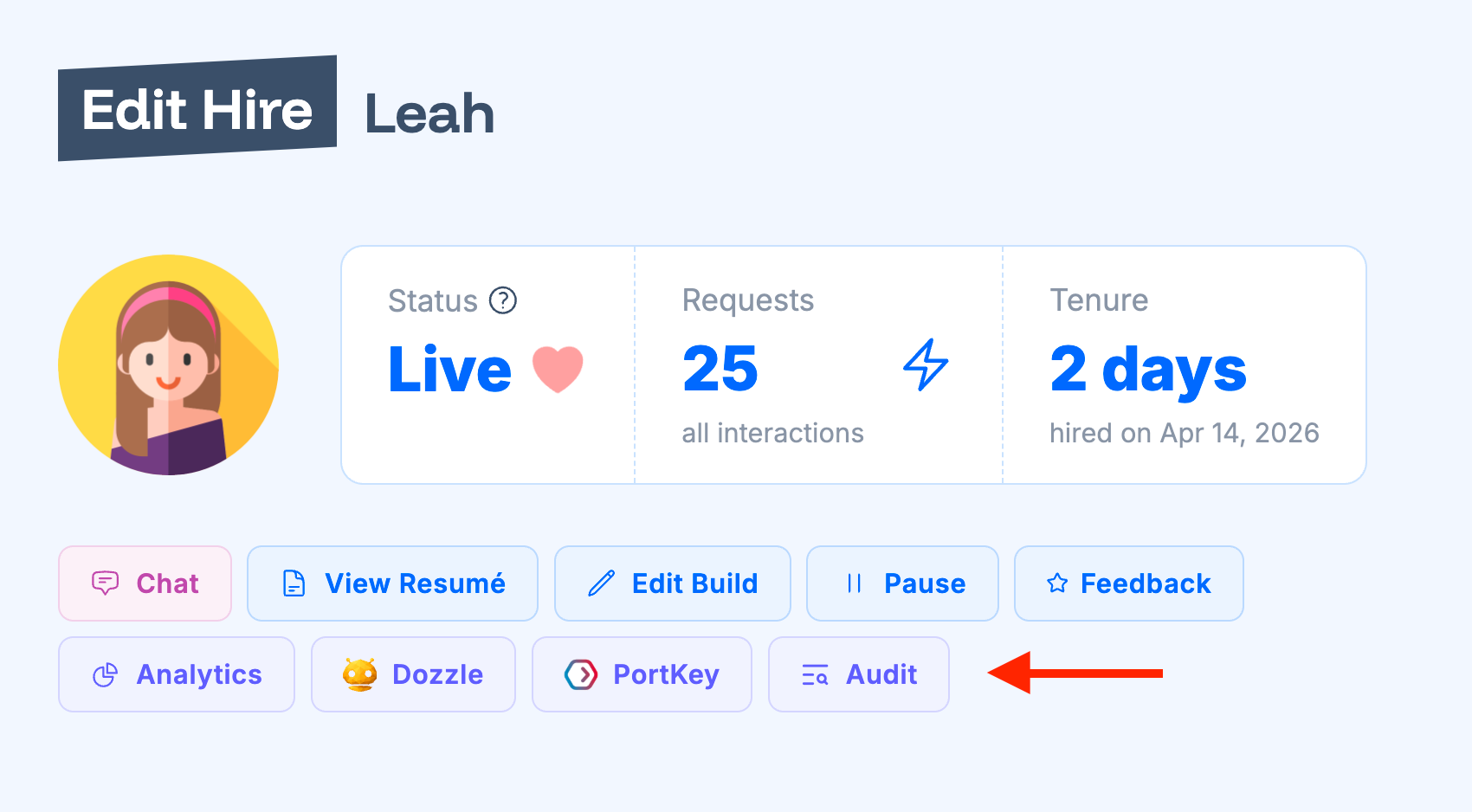
Every AI worker instance deployed on Humatron platform comes with built-in internal audit functionality. Click on 'Edit' button next to the AI worker instance (hire) and on 'Edit Hire' form you will see 'Audit' button.
Dozzle
Dozzle provides real-time logging and monitoring of the AI worker instance in its Docker containers. Every live AI worker instance (hire) comes with built-in Dozzle monitoring functionality. On a live hire instance you will see 'Dozzle' button that opens built-in Dozzle monitoring dashboard. You can find Dozzle & SSH passwords and usernames in the same 'Edit Hire' form.
PortKey LogoPortKey
PortKey provides a comprehensive set of observability, governance, and guardrails tools to help you manage your AI workers. You can configure PortKey API key and optional configuration ID on 'Organization Edit' form. Once configured, you can see 'PortKey' button on hire and built edit forms that will navigate to the PortKey dashboard.